IndexSuite
Professional Index Production Software
1. What is IndexSuite?
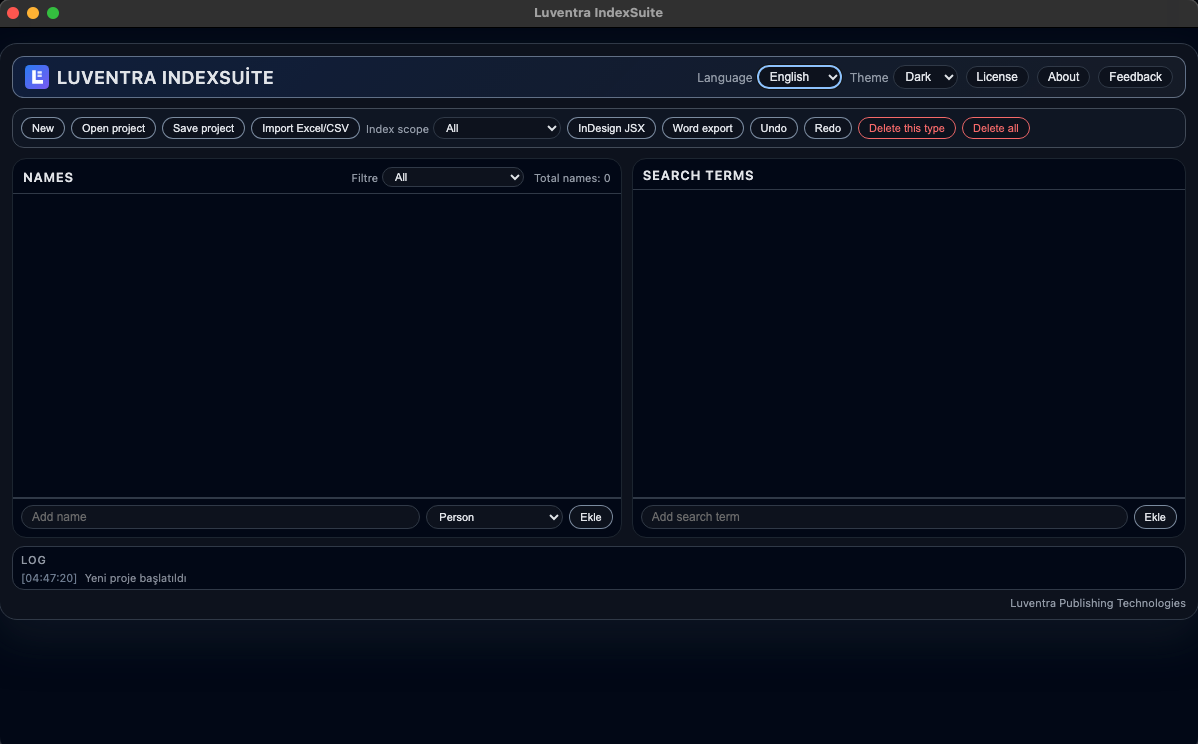
IndexSuite is a desktop software designed to speed up and standardize professional index production for books and long-form publications.
With IndexSuite, you can:
- Import index data from Excel or JSON files
- Centrally manage names, concepts, and terms
- Automate alphabetical sorting
- Get ready-to-use InDesign JSX output
- Generate Word compatible index outputs
2. System Requirements
- macOS Monterey (12) or later
- Intel or Apple Silicon (M1/M2/M3)
- Minimum 8 GB RAM (16 GB recommended)
- Windows 10 or Windows 11 (64-bit)
- Minimum 8 GB RAM
3. Installation
macOS
.dmg file.System Settings → Privacy & Security → "Open Anyway".
Windows
.exe file.4. Project Logic
IndexSuite works on a project-based structure.
- Each Book = 1 Project
- Project files are in
.jsonformat. - All index data is stored within this single file.
New Project:
Save Project:
5. Data Import (Excel)
Using Excel is the fastest way to import data. However, the file format must adhere to standards.
Mandatory Excel Format
| Type (Col 1) | Name (Col 2) | Term 1 (Col 3) | Term 2 (Col 4) | Term 3... |
|---|---|---|---|---|
| person | John Doe | Doe, John | J. Doe | - |
| concept | Democracy | democratization | - | - |
- Column 1 must always be Type.
- Column 2 is the main title/name.
- Column 3 and onwards are search terms (variants).
- Empty cells do not cause errors.
Import Steps
.xlsx file.6. Manual Data Entry
New Name
Click the button.
- Select type (person, concept, etc.)
- Fill in the name field
Add Term
Select the relevant name.
Use to enter a new search variant.
Edit & Delete
Right Click on a name → Select Edit to change details.
If you delete a Type (Category) from the left panel, all linked names are also deleted. The system will prompt "Are you sure?".
7. Export Output
InDesign JSX
Integrated workflow for professional indexing with Adobe InDesign.
Word Compatible
For quick edits and word processors.
.txt.Fully compatible with Word, LibreOffice, and Google Docs.
8. Demo & Licensing
- Limited to 3 days (device-based).
- When the trial expires, Export functions are locked.
- Projects are not deleted.
License Activation
Go to and input your license key.
The license is limited by device count. Contact support if you need to move it to another machine.
9. Frequently Asked Questions
My Excel won't open / appears empty?
Check the column order. Column 1 must be "Type", Column 2 must be "Name".
My name disappeared, where is it?
Save your project and reopen it. Also check your filter settings.
InDesign JSX not working?
Ensure your InDesign version supports JSX scripts. Verify the file extension is .jsx.